Try this setup#
Open in the editor Home page → FAQ accordion
Keep a few useful answers close to the buying journey.
- Open FAQ accordion and select each question block.
- Replace the sample questions and answers with your real product, shipping or service information.
- Keep answers concise and link to full policies where appropriate. Open each answer in the preview.
See the FAQ accordion controls
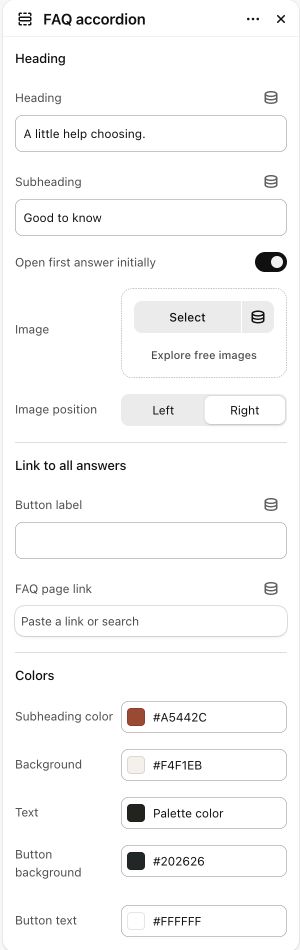
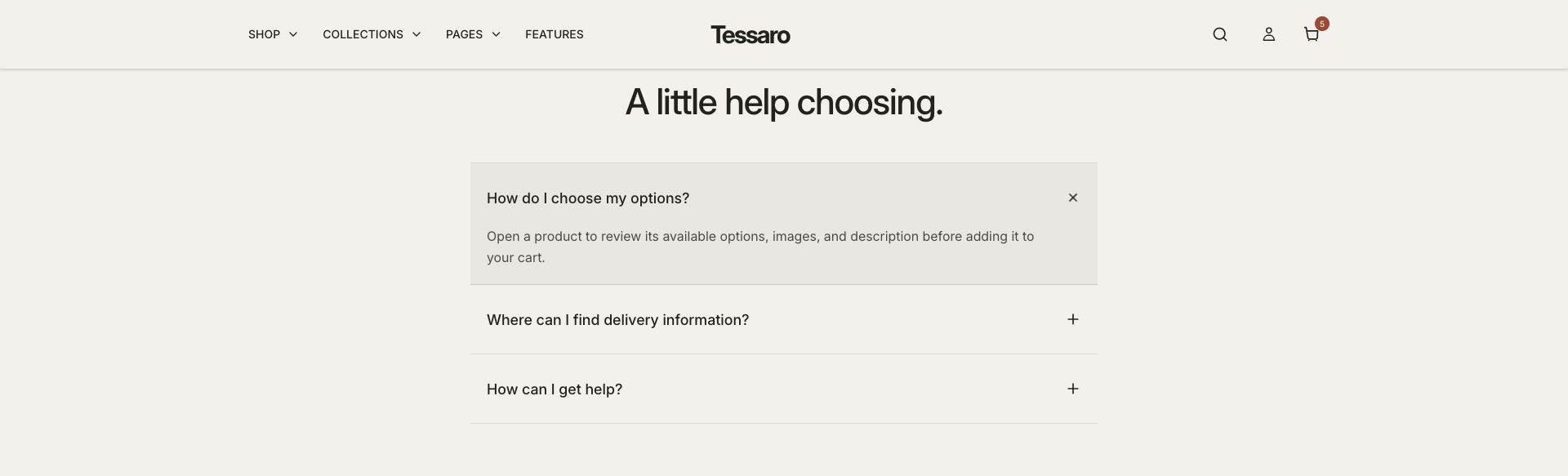
What to look for The answers match your actual policies and are readable on mobile. No sample delivery or return promise remains.
When to use it#
Display collapsible questions and answers in one list.
Set up#
Add a Question block for each answer and group the section under a useful heading.
Available from Add section where supported by its template restrictions.
Section settings#
These are schema defaults. Your installed theme or selected preset can use different saved values.
Heading
Heading#
Adjust this control in the theme editor and preview the result in the relevant template.
- Control
- text
- Default
- Frequently asked questions
Subheading#
Adjust this control in the theme editor and preview the result in the relevant template.
- Control
- text
- Default
- Not set
Open first answer initially#
Adjust this control in the theme editor and preview the result in the relevant template.
- Control
- checkbox
- Default
- On
Image#
Adjust this control in the theme editor and preview the result in the relevant template.
- Control
- image picker
- Default
- Not set
Link to all answers
Button label#
Adjust this control in the theme editor and preview the result in the relevant template.
- Control
- text
- Default
- View all FAQs
FAQ page link#
Adjust this control in the theme editor and preview the result in the relevant template.
- Control
- url
- Default
- Not set
Colors
Subheading color#
Adjust this control in the theme editor and preview the result in the relevant template.
- Control
- color
- Default
- #806042
Background#
Adjust this control in the theme editor and preview the result in the relevant template.
- Control
- color
- Default
- Not set
Text#
Adjust this control in the theme editor and preview the result in the relevant template.
- Control
- color
- Default
- Not set
Button background#
Adjust this control in the theme editor and preview the result in the relevant template.
- Control
- color
- Default
- #2C2825
Button text#
Adjust this control in the theme editor and preview the result in the relevant template.
- Control
- color
- Default
- #FFFFFF
Spacing
Margins add space outside the section. Padding adds space inside it.
Blocks#
Add, reorder and configure the supported blocks in the editor. Some block types have an individual limit.
Question#
Question#
Adjust this control in the theme editor and preview the result in the relevant template.
- Control
- text
- Default
- How do I place an order?
Answer#
Adjust this control in the theme editor and preview the result in the relevant template.
- Control
- richtext
- Default
- <p>Add a clear, helpful answer to this question. Keep it concise so customers find the information quickly.</p>