Shape the product presentation#
Open in the editor Page selector → Products → Default product → Product page
Start with a representative product from your own catalog.
- Preview a product with real media, options and inventory.
- Set gallery width, image behavior and the stock messages your store needs.
- Select the individual product blocks to arrange the title, price, options and buying controls.
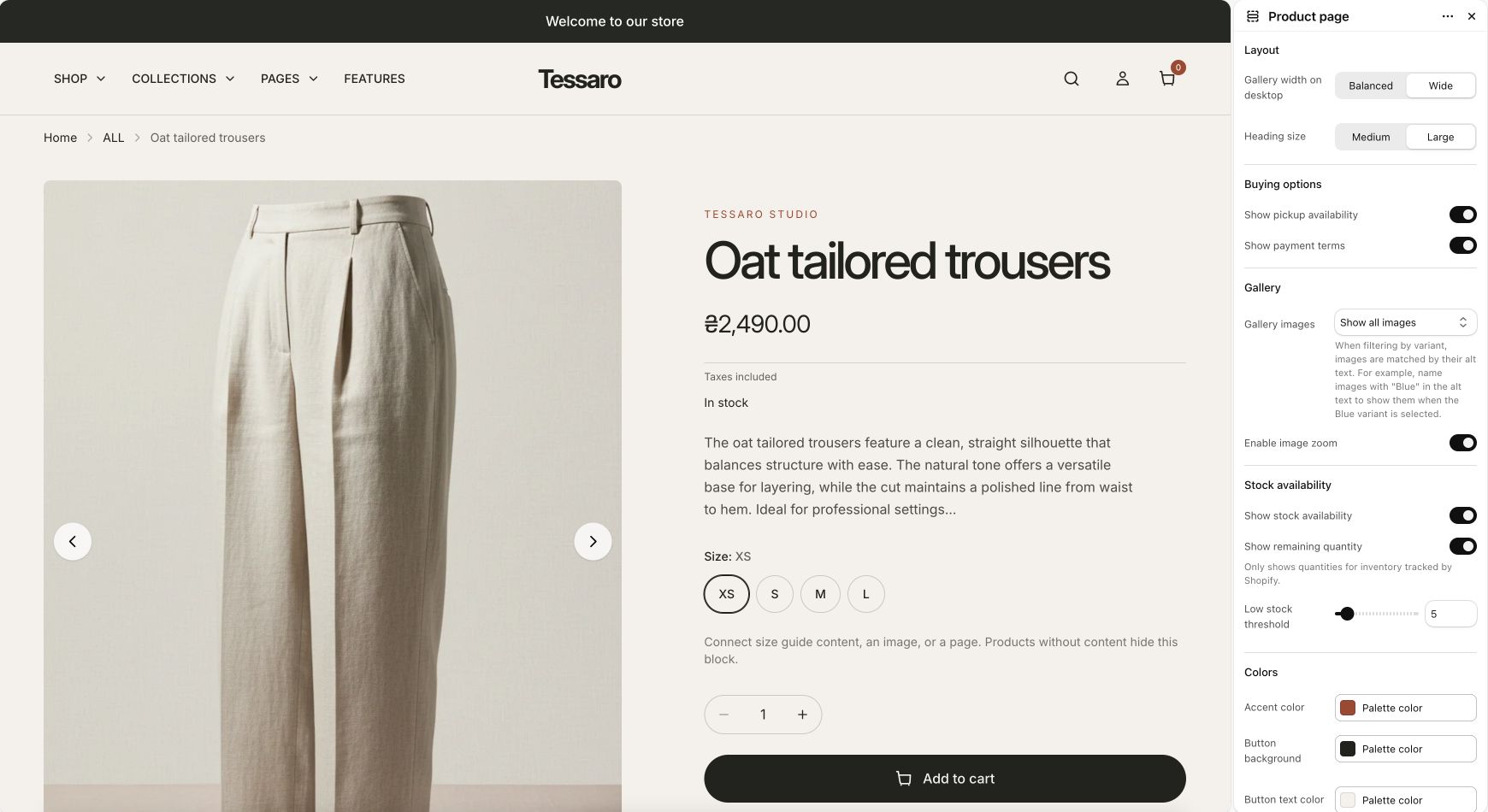
What to look for The image, selected option, price and buying controls describe the same product.
Start with product data#
Create the product, price, options, variants, inventory, media, and description in Shopify. Preview the actual product while editing. Template text is shared unless connected to a dynamic source.
Arrange the Product page blocks#
- Select a product template in the editor and open Product page.
- Keep a clear sequence: Media, Product heading, Price, Variant picker, Quantity selector, and Buy buttons. Add Vendor or SKU when useful.
- Add optional stock, delivery, size guide, recipient, gift message, text, accordion, or quick-order blocks as appropriate. Available blocks are listed in the section reference.
- Set desktop gallery width, gallery image behavior, zoom, pickup availability, payment terms and stock display.
- Add product highlights, details, story, complementary products, related products or reviews below the main section as needed.
Purchase controls#
Buy buttons can include Shopify’s dynamic checkout button. Which accelerated payment options appear depends on the store and customer context. Payment terms and pickup availability also depend on eligible Shopify configuration. The theme does not configure payments, installment eligibility, or pickup locations.
Variants, availability and inventory#
Option selection updates the selected variant presentation. Manage stock tracking, quantities, continue-selling behavior, and variant images in Shopify. Test an available variant, a sold-out variant, and any special purchasing rule your store uses.
Avoid conflicting buying interfaces#
A product can use standard purchase controls, a quick-order list, and a sticky bar. Choose a combination that is understandable. Use alternate templates when one product family needs bulk ordering and another needs a simpler purchase path.